Google Ads stands as a powerful tool for businesses aiming to capture the online market. Sometimes, the very features designed to optimize your campaigns can stealthily drain your budget. Many advertisers face the dilemma of auto-applied recommendations that promise enhanced results but end up inflating costs with little return. These automated suggestions, driven by algorithms, often tip the scales unfavorably, leaving small businesses scrambling to regain control over their ad spend.
Key Takeaways
- Google Ads auto recommendations can significantly drive up costs if not closely monitored
- Common recommendations often overlook your set budget constraints
- Unnecessary ad extensions can lead to increased expenses without corresponding results
- Taking control of your ad settings can prevent budget overruns
- Keyword expansion may lead to irrelevant searches, affecting your ROI
Understanding Google Ads Auto Recommendations
Google Ads’ auto recommendations are designed to enhance campaign performance by using machine learning algorithms. These suggestions often appear pre-checked by default, and many advertisers overlook their impact on budget allocation. The ads platform uses these recommendations to optimize your campaigns by improving your optimization score. However, without manual oversight, these auto recommendations can significantly alter your ad strategies, sometimes in ways you didn’t anticipate.
What we’ve seen in real accounts
- Auto-apply recommendations can increase spend on broad match keywords
- Some accounts get better volume, but lead quality drops
- Extensions can improve visibility, but only when they match the campaign goal
- The optimization score can look better while the ROI gets worse
Advertisers often find themselves in a bind when these recommendations are auto-applied without their explicit consent. It’s crucial to remember that Google’s algorithm doesn’t fully understand your specific goals or financial constraints. This is why many small business owners find themselves with high costs and minimal returns.
The key to navigating Google Ads recommendations lies in regular review and strategic application. The platform provides useful insights, but you need to review them regularly to ensure they fit your business needs. By taking a proactive approach, you can harness Google’s recommendations without losing your budget.
How Auto-Apply Can Lead to Unnecessary Ad Extensions
Ad extensions are a useful feature in Google Ads, allowing advertisers to provide additional information and options to potential customers. However, when auto-applied without careful consideration, these extensions can inflate costs by promoting irrelevant features. Many small businesses find themselves facing increased expenses without seeing a corresponding improvement in results.
| Auto-Apply Extension Type | What Google Does Automatically | Potential Issue for Advertisers | Impact on Your Budget/Performance |
| Sitelink Extensions | Adds extra links to your ads to improve visibility | May include irrelevant or low-performing pages and also cause ad disapprovals | Can dilute click quality and reduce conversion focus |
| Callout Extensions | Automatically highlights additional selling points | May use generic or unnecessary messaging | Weak messaging can lower ad relevance |
| Structured Snippet Extensions | Shows predefined categories like services or products | Might display broad or non-targeted offerings | Attracts unqualified traffic |
| Call Extensions | Adds phone numbers to encourage direct calls | May be enabled even when calls are not a priority | Leads to untracked or low-value leads |
| Location Extensions | Shows the business location automatically | Can be shown for irrelevant service areas | Wastes impressions on non-target audiences |
To prevent these issues, marketers should regularly review their ad extensions and make adjustments as needed. By taking a hands-on approach, you can maintain budget efficiency and ensure your ads are delivering the right message to the right audience.
Steps to Take Control of Your Google Ads Settings
Taking control of your Google Ads settings is essential for maintaining budget efficiency and achieving your advertising goals. Business owners must regularly review and adjust auto-applied changes to prevent unnecessary expenses. By customizing your settings to align with specific goals, you can optimize your campaigns and ensure your ad spend is used effectively.
Google Ads provides options to disable or modify auto recommendations, allowing you to tailor your campaigns to your unique needs. By taking advantage of these options, you can prevent Google’s algorithm from making decisions that don’t align with your goals. Here are the steps to find auto-apply recommendations:
Step 1: Open your Google Ads account and sign in. Once inside, make sure you are on the correct campaign or account you want to manage.
Step 2: In the left-hand menu, click on “Recommendations.” This is where Google shows suggested changes to improve your campaigns.
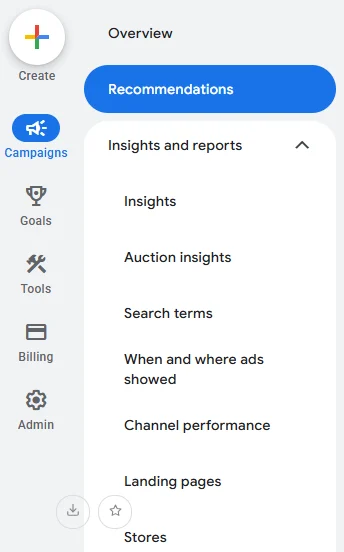
Step 3: Look for the “Auto-apply” section at the top of the Recommendations page. This area lists all the recommendations that can be applied automatically.
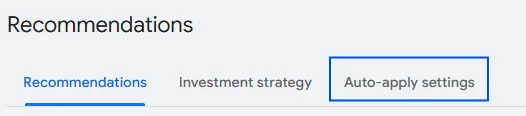
Step 4: Review each recommendation carefully and decide whether to turn it on or off. You can enable those that match your goals and disable the ones you don’t want applied automatically.
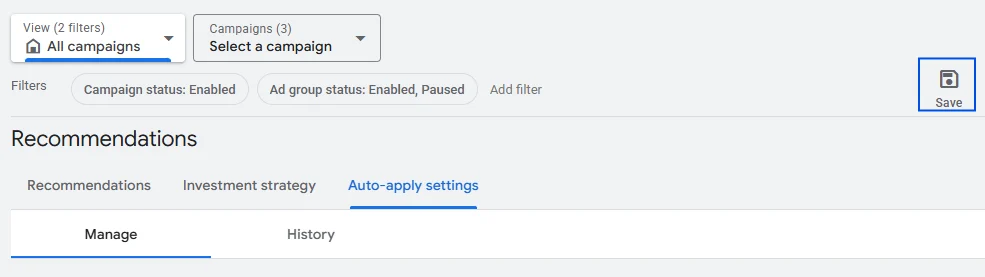
Step 5: Save your changes to confirm your selections. From now on, only the approved recommendations will be applied based on your preferences.
Keyword Expansion: Helpful or Harmful?
Keyword expansion can help reach new audiences, but it isn’t always aligned with your campaign goals. Google’s auto-apply feature may turn it on by default, which can quietly increase spending by adding broader or less relevant searches. Without regular monitoring, this can drain your budget while reducing overall targeting efficiency.
Broad match keywords, in particular, can lead to a situation where your ads are displayed for unrelated searches. This can dilute your targeting efforts and result in wasted ad spend. Business owners should regularly audit their keyword lists to ensure relevance and prevent unnecessary expenses.
Limiting keyword expansion is crucial for maintaining focused campaigns and budget-friendly ad spend. By taking a strategic approach to keyword selection, you can ensure your ads are reaching the right audience and delivering meaningful results. The steps below will guide you through where to find the settings and how to turn them off so Google doesn’t make automatic changes without your approval.
Step 1: Sign in to your Google Ads account and open the campaign or account you want to manage. Make sure you’re in the correct workspace before making any changes.
Step 2: From the left-hand menu, click on “Recommendations.” This is where all automated suggestions and auto-apply settings are listed.
Step 3: Scroll to find the “Auto-apply” section and look specifically for keyword and targeting recommendations. These are usually labeled under optimization or expansion settings.
Step 4: Uncheck the boxes related to keyword and targeting auto-apply options. This stops Google from automatically adding or changing keywords and audience targeting settings.
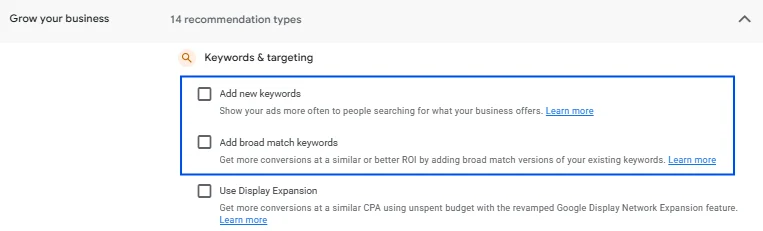
Step 5: Click “Apply” or “Save” to confirm your changes. This ensures your keyword and targeting settings stay under your control going forward.
Understanding the Impact of Auto-Apply Recommendations in Google Ads
Auto-apply recommendations in Google Ads can have very different outcomes depending on the type of change being made. Some settings improve performance, others have little impact, while a few can negatively affect your results if not reviewed carefully. Understanding these differences is key to managing your campaigns more effectively and protecting your ad spend.
| Category | Type of Recommendation | Pros | Cons |
| Useful recommendations | Settings that improve bids, ad relevance, or basic optimizations | Some auto-apply suggestions help improve performance by adjusting settings based on real data. They can save time and ensure your campaigns follow best practices. | If not reviewed properly, even useful changes may not align with your specific business goals or campaign strategy. |
| Harmless recommendations | Minor settings like adding extensions or small formatting improvements | These changes usually have little to no negative impact and can slightly improve ad appearance or visibility. They are generally safe to apply automatically. | Even if harmless, they can clutter your account with unnecessary settings that don’t significantly improve results. |
| Risky recommendations | Budget increases, broad targeting, aggressive bidding strategies | In some cases, they may increase reach or impressions quickly, giving short-term visibility boosts. | If auto-applied without review, they can hurt performance by increasing costs, reducing targeting precision, and wasting budget on low-quality traffic. |
Google Ads Auto-Apply Recommendations Questions
Should You Let Google Ads Apply Recommendations Automatically?
Letting Google Ads auto-apply recommendations can save time, but it’s important to assess each suggestion. Some recommendations might not align with your campaign goals or budget constraints. It’s often best to review them manually to ensure they fit your strategy. Auto-applying might work for some straightforward campaigns, but for complex objectives, manual control yields better results.
Does Optimization Score actually matter in Google Ads?
The optimization score is a useful gauge of your account’s health. It highlights areas for potential improvement, but not every suggestion will suit your needs. Focus on recommendations that align with your specific goals and budget. A high score is great, but actual performance and ROI matter more.
What is a Recommendation vs. an actual performance issue?
Recommendations are Google’s suggestions to potentially enhance your campaign. They don’t always mean something is wrong. Performance issues, however, indicate that something isn’t working as expected, impacting your results. Always distinguish between the two, i.e., address performance issues promptly and evaluate recommendations for relevance before acting.
Are Google Ads Recommendations just a money grab by Google?
While it may seem like recommendations push for increased spending, they aim to optimize ad performance. However, not all recommendations will benefit your budget or goals. Always critically evaluate whether the proposed changes align with your strategy and financial plan to ensure you’re not overspending unnecessarily.
What are the Best Practices for Using Google Ads Auto-Apply Recommendations?
Firstly, customize auto-apply settings to suit your needs. Regularly review applied changes to ensure they align with your objectives. Keep a close eye on performance metrics to assess effectiveness. Lastly, maintain control by manually reviewing complex recommendations to avoid misalignments with your campaign goals.
Managing Google Ads Auto-Apply Recommendations
By taking control of your Google Ads settings, reviewing ad extensions, and refining your keyword strategies, you can optimize your campaigns for success. Google Ads settings and recommendation options may change over time. Always review changes in your own account before applying them automatically.
As a digital marketing agency, we know that Google Ads automation can be useful, but it can also lead to wasted spend if not carefully managed. Our focus is on helping businesses stay in control of their budgets while using automation only where it truly adds value. This balanced approach ensures better performance, efficiency, and return on ad spend.
Are your Google Ads automation settings helping you grow efficiently, or are they quietly increasing your ad spend? If you’re unsure, request a free consultation today and let our experts help you optimize your campaigns for better control and performance.